What You Need to Start with Git
A beginner-friendly introduction to the essential Git commands and concepts. This course will equip you with the fundamental skills to start versioning your projects and collaborating with other developers effectively.
Introduction to Git
Git is a distributed version control system. Think of it as a way to save snapshots (called "commits") of your project over time. This allows you to track changes, revert to previous versions, and collaborate with others without overwriting each other's work.
1. Initializing a Repository
First, you need to tell Git to start tracking a project.
git init: This command is used to start a new repository. You run this command in your project's root directory. It creates a hidden.gitsubdirectory where all the Git-related magic happens.
2. The Basic Workflow: Status, Add, Commit
This is the core cycle you'll use constantly.
git status: This is your "what's going on?" command. It shows you the current state of your working directory and staging area. It will tell you which files have been modified, which are new (untracked), and which are staged for the next commit.git add <file-name>: When you've made changes to a file that you want to include in your next snapshot (commit), you first need to add it to the "staging area." This command does just that. You can also usegit add .to add all modified and new files in the current directory and subdirectories.git commit -m "Your descriptive message": This takes all the files from the staging area and saves a snapshot of them to your project's history. The message (-m) is crucial; it should be a clear and concise description of the changes you made.
Example: Let's say we have a folder with 3 files
index.htmlstyles.cssscript.js
3. Working with a Remote Repository (like GitHub)
To collaborate or to have an online backup of your code, you'll use a remote repository.
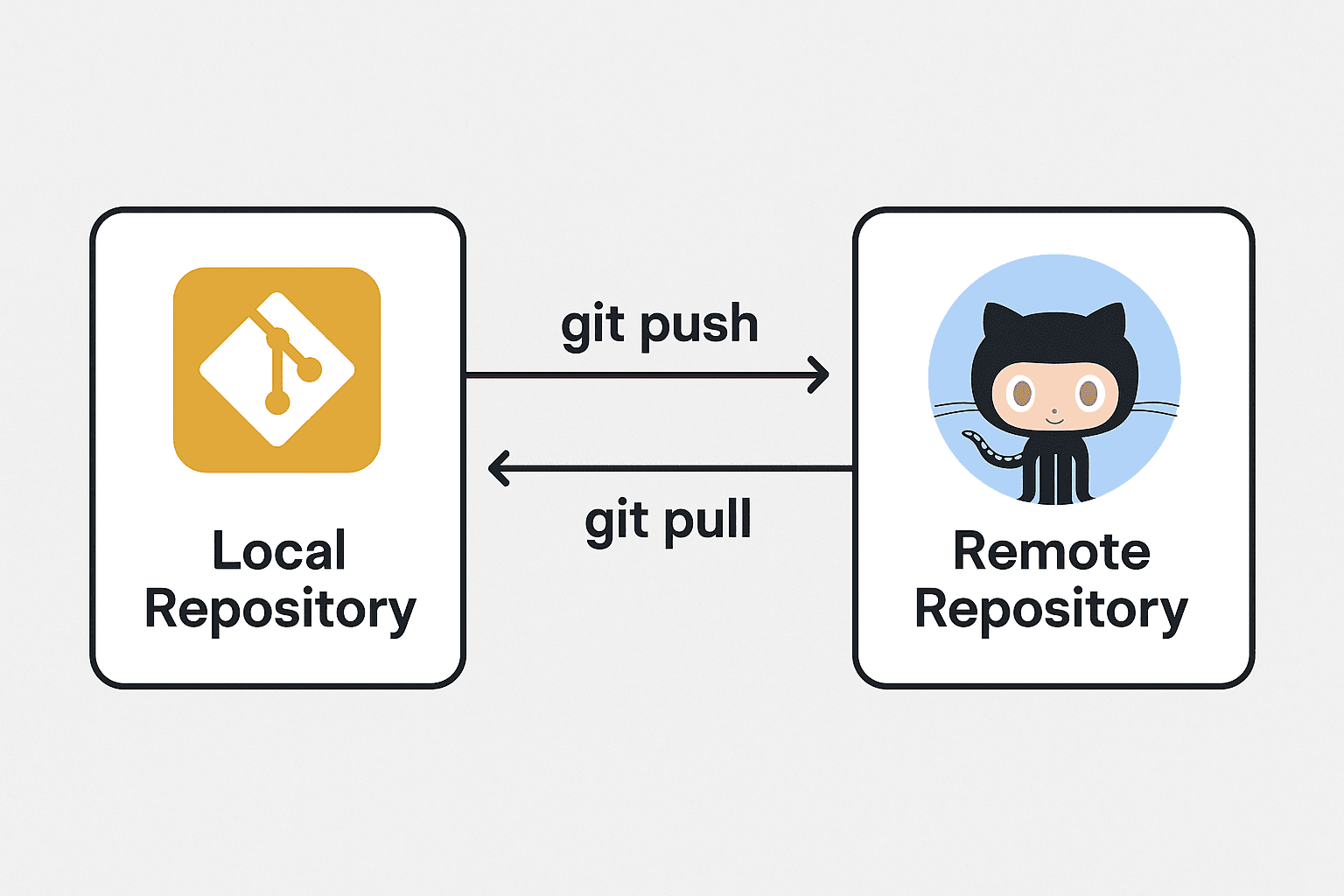
git push: This command sends your committed changes from your local repository to a remote repository (e.g., on GitHub). The first time you push a new branch, you might need to usegit push -u origin <branch-name>.git pull: This command fetches changes from the remote repository and merges them into your current local branch. It's how you get updates made by others. It's a good practice to pull before you start working to ensure you have the latest version.
Example:
Let's stay on the same project
First, set up a remote repository and push:
Later, when you want to pull changes:
After making local changes and pushing again:
4. Branching and Merging: Working in Parallel
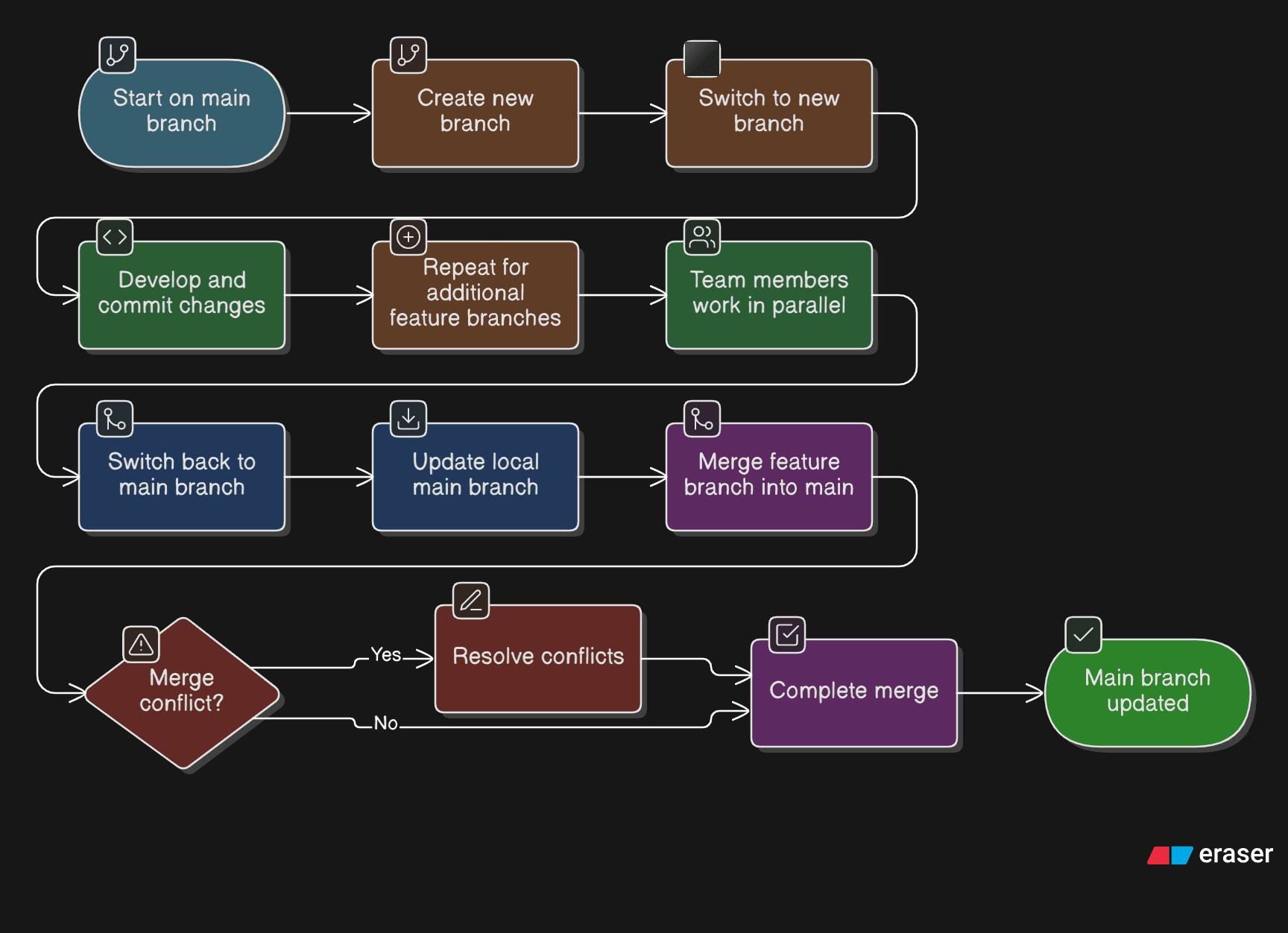
Branches are a fundamental concept in Git. They allow you to work on different features or bug fixes in isolation without affecting the main codebase.
git branch <branch-name>: This creates a new branch.git checkout <branch-name>(orgit switch <branch-name>on newer Git versions): This switches your working directory to the specified branch.- You can create and switch to a new branch in one command:
git checkout -b <new-branch-name>
Once you've finished your work on a branch and are ready to integrate it back into the main codebase (often the main or master branch):
- Merging: First, switch back to the main branch (
git checkout main). Then, rungit merge <branch-name>. This will take the changes from your feature branch and combine them with themainbranch.
Example:
5. Pull Requests: Proposing Changes
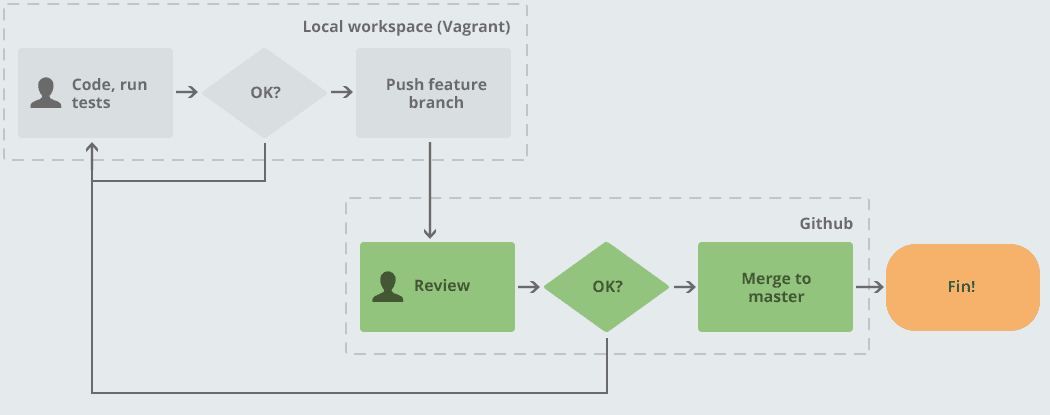
When working in a team, instead of merging directly, you'll often use a "Pull Request" (PR) on platforms like GitHub or GitLab.
- Push your branch: After committing your changes to your feature branch, you push it to the remote repository:
git push origin <branch-name>. - Open a Pull Request: Go to the repository on GitHub. You will usually see a prompt to create a Pull Request from your recently pushed branch.
- Review and Merge: A Pull Request is a formal proposal to merge your changes. It allows your teammates to review your code, leave comments, and suggest changes before it's merged into the main branch. Once approved, the changes can be merged.
6. Ignoring Files: .gitignore
Often, there are files or entire directories in your project that you do not want to track with Git. These can include:
Dependencies managed by package managers (e.g., a node_modules folder).
Build artifacts or compiled code (e.g., /dist, *.exe).
Log files (*.log).
Files containing sensitive information like API keys or credentials (e.g., .env files).
Operating system-specific files (e.g., .DS_Store on macOS).
To prevent Git from tracking these files, you create a special file in the root directory of your project named .gitignore.
Each line in this file lists a pattern for a file or folder that Git should ignore. These ignored files won't show up in git status and cannot be added to a commit.
Example: